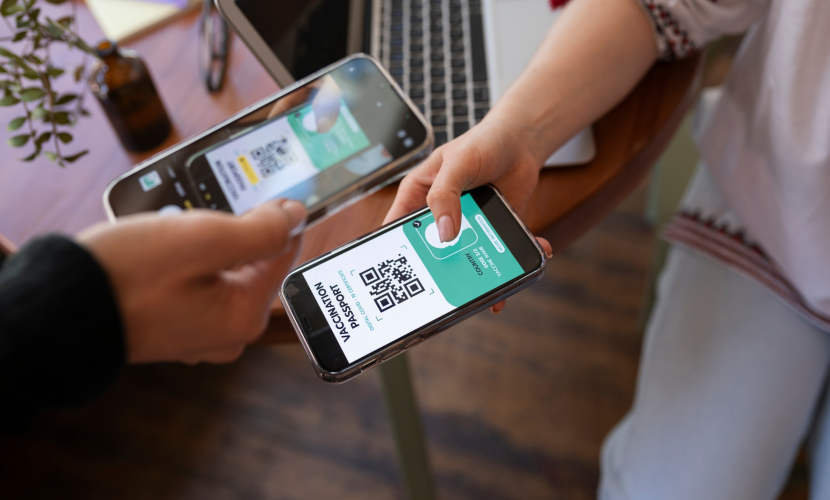
How to Use eSIM When Traveling Abroad
Using an eSIM is the most efficient and cost-effective way to stay connected while traveling abroad, eliminating the need to search for local SIM stores or pay your home carrier's expensive roaming fees.
Here is a step-by-step guide on how to use an eSIM for international travel, along with crucial best practices.
1. Before You Leave (The Setup Phase)
This phase should be completed before you depart, using your home Wi-Fi connection.
A. Verify Device and Carrier
Check Phone Compatibility: Ensure your device supports eSIM (e.g., iPhone XS/XR and newer, Samsung Galaxy S20 and newer, Google Pixel 3 and newer).
Verify Phone is Unlocked: The single most important step. Your phone must be unlocked by your home carrier to install a third-party travel eSIM.
iOS Check: Go to Settings > General > About. Look for "No SIM Restrictions" next to Carrier Lock.
B. Choose and Purchase Your Plan
Select a Provider: Use a dedicated global eSIM provider (e.g., Airalo, Holafly, Nomad) or a major global carrier (like T-Mobile or Verizon, if they offer an affordable travel eSIM option).
Choose the Right Plan:
Local: Best price if you're staying in one country (e.g., "5GB for Spain").
Regional: Best for multi-country trips (e.g., "Europe 30-Day Pass").
Global: Most expensive but provides service in 100+ countries.
C. Install the eSIM Profile
Once purchased, the provider will email or provide a QR code or manual installation details.
Open Settings: Navigate to your phone's cellular/mobile settings.
iPhone: Settings > Cellular (or Mobile Data) > Add eSIM.
Android: Settings > Network & Internet > SIMs > Add More (or Download a SIM).
Scan or Enter Details: Scan the provided QR code or select "Enter Details Manually" and copy the provided activation codes.
Label the eSIM: Crucially, label your new eSIM immediately (e.g., "Paris Data" or "Spain Travel"). This prevents confusion between your home line and the travel line.
2. When You Arrive (The Activation Phase)
Your eSIM is installed but not yet active. You'll activate it immediately upon landing.
A. Manage Your Cellular Lines
Select Data Line: Go back to your cellular settings.
Set the newly installed eSIM as your Cellular Data Line.
Keep Your Home Line for Calls/Texts:
Leave your Primary (home) SIM line ON for Voice and SMS. This allows you to receive crucial 2FA codes and texts from your bank or family without incurring call charges.
Prevent Roaming Fees:
Turn OFF Data Roaming for your Primary (Home) Line. This is vital to prevent surprise bills from your home carrier.
B. Activate Data Roaming on the Travel eSIM
Turn ON Data Roaming for the Travel eSIM.
Yes, this is counter-intuitive, but necessary. Since the travel eSIM is using a foreign network (the local partner), it must be set to "Roaming" to connect.
Check for Signal: Within a few minutes, your phone should connect to the local network and display the carrier's name (e.g., Vodafone, Orange, NTT Docomo).
3. Best Practices for Smooth Usage
Use Data-Only eSIM for VoIP: Most travel eSIMs are Data Only (they do not provide a local phone number). Use apps like WhatsApp, FaceTime Audio, or Google Voice for all calls and messages.
Check the APN: If you have installed the eSIM but have no data, check the APN (Access Point Name). This is a common issue. Your provider's setup guide will tell you the correct APN to manually enter (often something simple like
internetorglobaldata).Manage Data Switching: Most phones have a setting called "Allow Cellular Data Switching." Turn this OFF to ensure your phone doesn't automatically switch back to your expensive home line when the travel eSIM signal is momentarily weak.
After the Trip
When you return home, go back to your cellular settings, switch your Cellular Data Line back to your Primary SIM, and then you can delete the expired travel eSIM profile.
“The Internet is the first thing that humanity has built that humanity doesn’t understand, the largest experiment in anarchy that we have everhad. Cybersecurity is not just about protecting your devices. ”

Which Devices Support eSIM in 2025
06 Jul 2025
Troubleshooting Common eSIM Activation Issues
06 Jul 2025
How eSIM Is Changing the Way We Stay Connected
06 Jul 2025